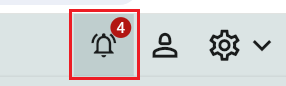
Notifications are used to quickly inform users about important events, changes, or actions that require attention. If there are more than 99 notifications for a function, 99+ is displayed, and the user needs to open the function to see the correct number in the lower right corner.
Under the bell icon, notifications are shown for some of the most common functions in Argus that regularly require action or attention.
No communication in 5 days – By clicking on No communication i 5 days, you’ll be directed to the page where you can see when the salesperson/district last communicated and which version of Argus they are using. The number in the notification shows how many salespeople/districts have not communicated during the past 5 days. To identify them, you need to search using the date filter.
 Invalid time interval - If this message appears and you click on it, you’ll see a list of sales cycles with incorrect or invalid time intervals. Since large parts of Argus are built around sales cycles, it is important that such conflicts do not occur.
Authorise – By clicking on Authorise, you’ll be directed to the approval page in Argus, where you’ll automatically see all payments that have been approved/attested by the sales reps / sales organization and require your action in the next step. The number indicates how many payments need to be approved.

Authorise level 2 – If this option appears under Notifications, your company has chosen to include an additional step in the approval workflow.
It’s possible to set an amount limit so that only payments above a certain sum proceed to this level.
To set this up, please contact our support team.
By clicking on Authorise level 2 you’ll be directed to the approval page in Argus, where you’ll automatically see payments that meet the specified criteria.
The number indicates how many payments are currently in Level 2.
Payments – By clicking on Payments, you’ll be directed to the bank module and the first tab, approval.

EDI / Monitor – The EDI Monitor is used to view and control message responses for live orders. Clicking it will take you to the EDI Monitor. For more information, see the EDI Monitor manual.

Customer Changes - Here you can view any updates that have been made to your customers.
For example, if a customer has changed chain, customer class, or has been deactivated, etc.

Was this article helpful?
That’s Great!
Thank you for your feedback
Sorry! We couldn't be helpful
Thank you for your feedback
Feedback sent
We appreciate your effort and will try to fix the article